
Technology & Access FAQs
Technology and Access Frequently Asked Questions
Students can log in to their student Gmail accounts at gmail.com. To log in to Moodle, go to https://moodle.blueskyschool.org.
To log in to the parent portal, go to bluesky.powerschool.com and then enter your username and password. For more information, go to our Parent Access page on our website.
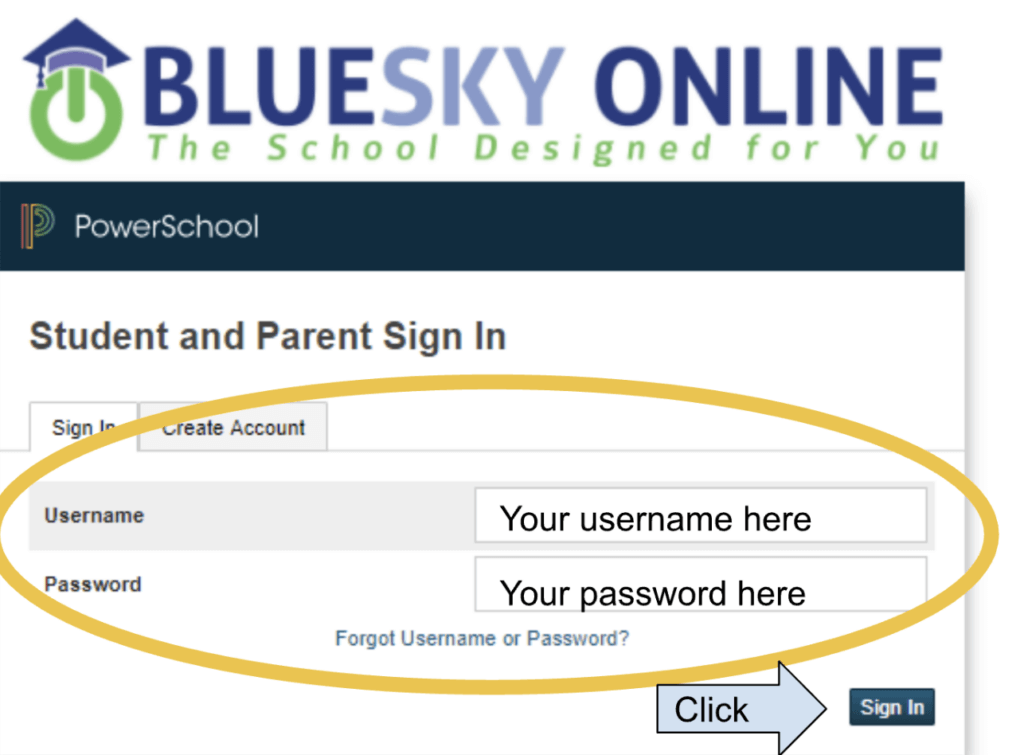
If you forget your password, click “Forgot username or Password” and follow the steps to reset it. If you need further assistance, you can email support@blueskyschool.org.
To log in to Zoom, you first need to have Zoom installed on your computer. Then, in your course, click on the join link in the Zoom activity. For more information, check out our Zoom FAQ.
Do these things in order, and if your connection improves, you won’t need to move to the next step:
1. Restart your computer and see if that helps.
2. Turn off your wifi and then reconnect to wifi
3. Move closer to your router
4. Unplug your router for 20-30 seconds and then restart. You will have to wait a minute or two while it reconnects. This should solve the problem.
When your audio or camera doesn’t work, check that your sound volume is up and your camera is allowed. You can also go to your settings on your computer. See this video about audio or video settings. Check out more tips at the bottom of this Zoom FAQ.
Yes, to see all our technical requirements, please see our BlueSky Tech webpage.
Students and Staff can create a ticket by emailing support@blueskyschool.org or by logging in to our helpdesk site (using Google). See How to Find My Help Desk Ticket. Parents can create a ticket by emailing support@blueskyschool.org.
Please check this document to keep your laptop up to date.
Go to Settings > Windows Update (or search Check for updates from the Start Menu), install any available updates, and restart if prompted to keep your laptop secure and running.
Please reach out to Support@blueskyschool.org or check with the enrollment team.